GUI Navigation & Shortcuts
The desktop GUI (MetalGUI) can be driven entirely with the mouse, but
the keyboard shortcuts below are faster once a design has more than a
couple of components. They’re also available in-app: press ? or use
the Help button on the plot toolbar for the same reference without
leaving the GUI.
Mouse
Pan |
Drag with the left mouse button. |
Zoom |
Scroll the mouse wheel. Zoom centers on the pointer. |
Zoom to region |
Drag with the right mouse button to rubber-band a rectangle. |
Select a component |
Click it. |
Edit a component |
Double-click it, or click a component that’s already selected. |
Move the selected component
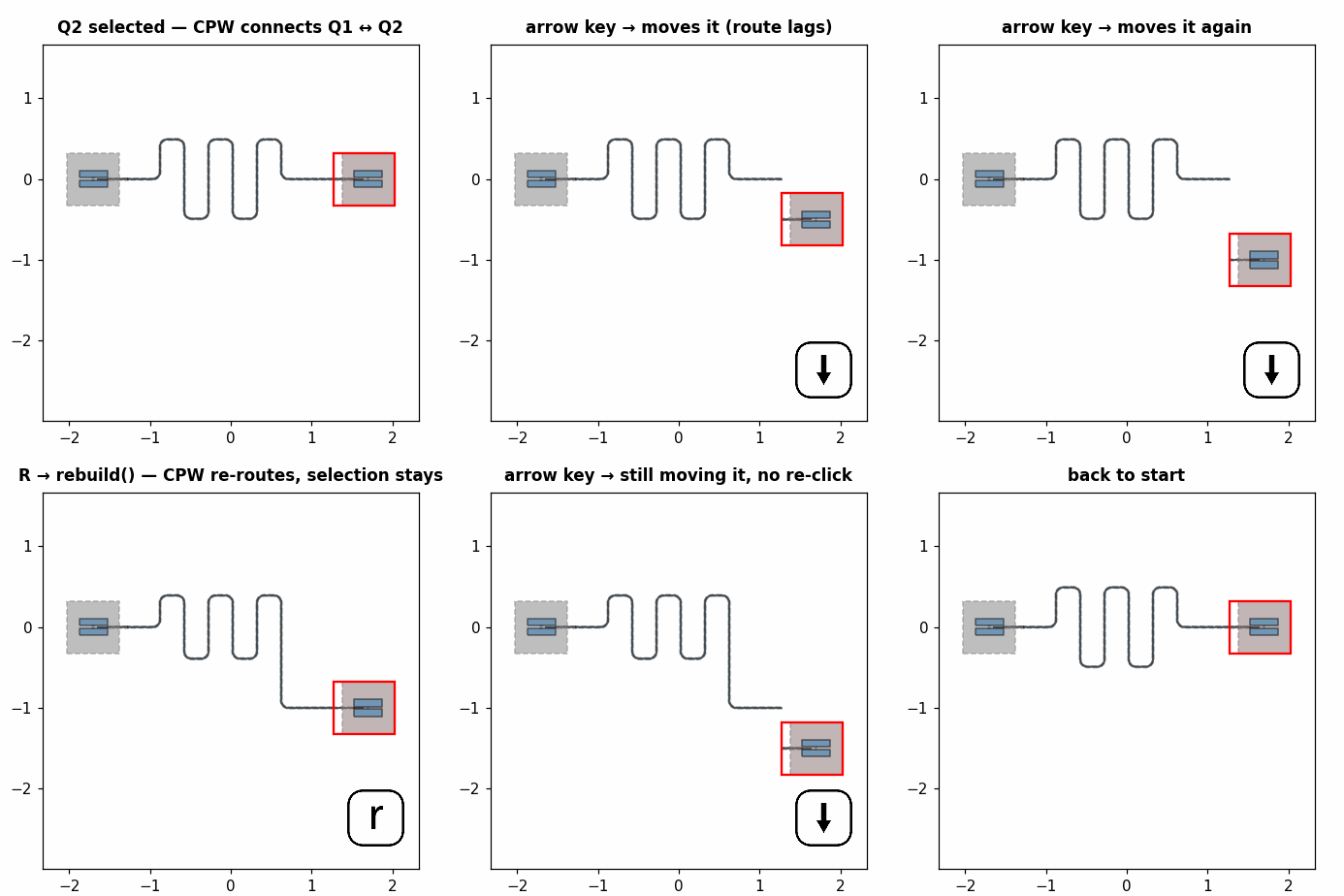
Click a component to select it, then use the arrow keys.
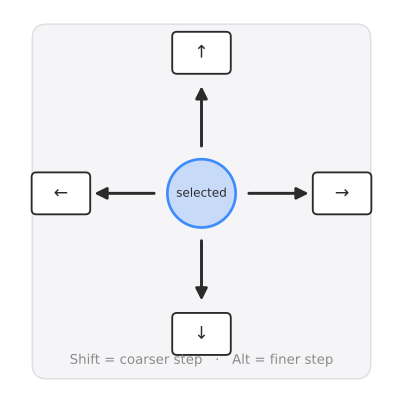
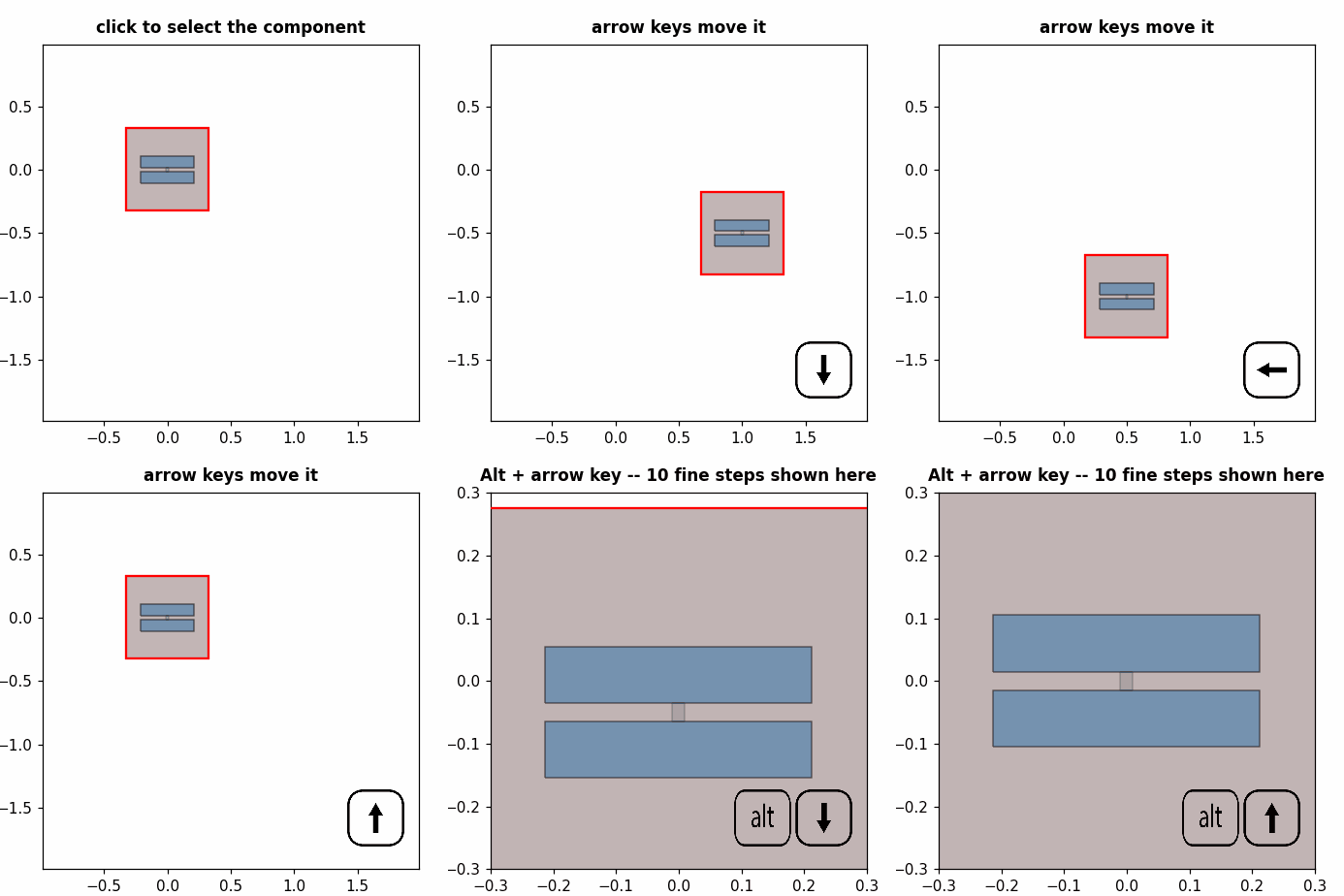
Hold Shift while nudging for a coarser step, or Alt for a finer one — the same modifier convention most drawing tools use.
Rotate the selected component
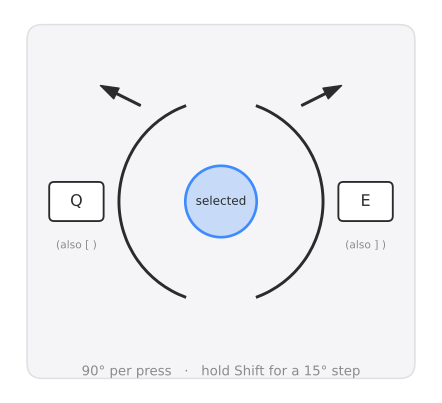
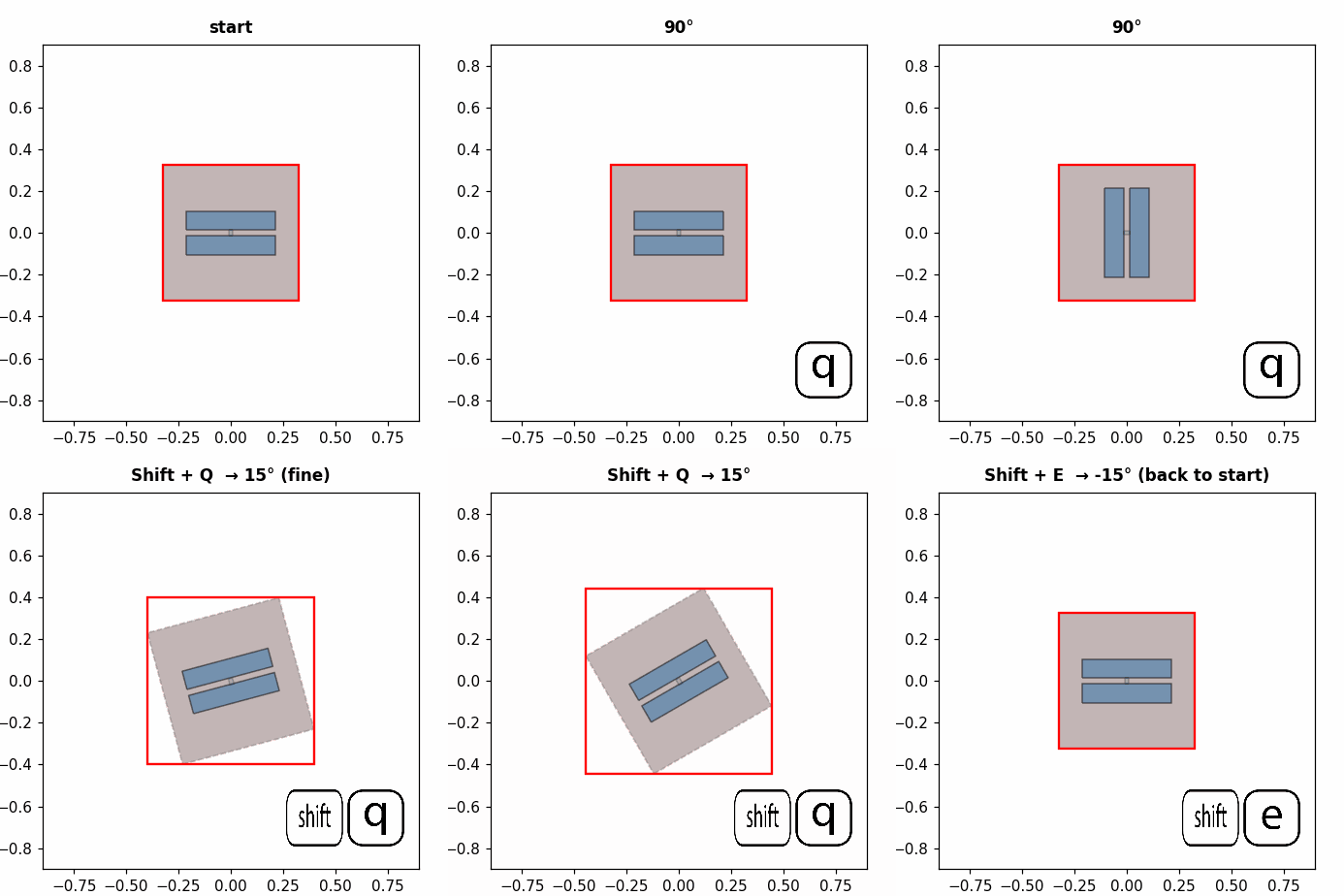
Q / E rotate counter-clockwise / clockwise in 90° steps — the same convention used for rotation in many games and creative tools. [ / ] do the same thing, for anyone who prefers the bracket keys. Hold Shift for a finer 15° step instead of 90°.
Rebuild keeps your selection
Moving, rotating, and rebuilding (R) can be chained without ever re-clicking the component — rebuilding re-routes any connected CPWs to follow it, and the selection survives the rebuild so the next arrow key keeps moving the same component:
Other shortcuts
A |
Fit the view to the design (components only). |
Shift+A |
Fit the view to the whole chip, including the die outline. |
R (also Ctrl+D) |
Rebuild the design. |
? |
Open this reference in-app. |
Editing a component’s options replots without moving the camera, so your current zoom and pan are preserved.