Note
This page was generated from tut/1-Overview/1.5-Parametric-design—iterate-and-compare.ipynb.
1.5 Parametric Design: Iterate and Compare
Metal is a design-as-code framework — every chip property is a Python variable. That means you can sweep parameters, compare variants side-by-side, and save entire design families with a loop.
By the end of this notebook you will:
Vary a qubit geometry parameter and render a comparison grid
Vary a CPW length and see how the route adapts
Export all variants as PNG for a presentation or paper
Prerequisite: 1.2 Your First Chip — we’ll reuse the 4-qubit ring design.


💡 Running in Colab or Binder? Skip the desktop GUI install — the cell below grabs the lite (no-Qt) wheel, and
qm.gui(design)auto-picks an inline matplotlib viewer with the same API (gui.rebuild(),gui.screenshot(),gui.edit_component(...)) as the desktopMetalGUI.
[1]:
# In Colab / Binder, uncomment to install Quantum Metal (lite, no Qt).
# Locally you should already have it via `pip install quantum-metal` or
# `pip install 'quantum-metal[gui]'` for the desktop GUI.
# !pip install -q quantum-metal
[2]:
# Rebuild the 4-qubit chip from tutorial 1.2
from qiskit_metal import designs
from qiskit_metal.qlibrary.qubits.transmon_pocket import TransmonPocket
from qiskit_metal.qlibrary.tlines.meandered import RouteMeander
from qiskit_metal import Dict
import qiskit_metal as qm
import matplotlib.pyplot as plt

%matplotlib inline

design = designs.DesignPlanar()
design.overwrite_enabled = True

options = dict(
    pad_width="425 um",
    pocket_height="650um",
    gds_cell_name="FakeJunction_01",
    connection_pads=dict(
        a=dict(loc_W=+1, loc_H=+1),
        b=dict(loc_W=-1, loc_H=+1, pad_height="30um"),
        c=dict(loc_W=+1, loc_H=-1, pad_width="200um"),
        d=dict(loc_W=-1, loc_H=-1, pad_height="50um"),
    ),
)

q1 = TransmonPocket(
    design, "Q1", options=dict(pos_x="+2.55mm", pos_y="+0.0mm", **options)
)
q2 = TransmonPocket(
    design,
    "Q2",
    options=dict(pos_x="+0.0mm", pos_y="-0.9mm", orientation="90", **options),
)
q3 = TransmonPocket(
    design, "Q3", options=dict(pos_x="-2.55mm", pos_y="+0.0mm", **options)
)
q4 = TransmonPocket(
    design,
    "Q4",
    options=dict(pos_x="+0.0mm", pos_y="+0.9mm", orientation="90", **options),
)


def connect(name, c1, p1, c2, p2, length, asym="0 um"):
    return RouteMeander(
        design,
        name,
        Dict(
            pin_inputs=Dict(
                start_pin=Dict(component=c1, pin=p1), end_pin=Dict(component=c2, pin=p2)
            ),
            lead=Dict(start_straight="0.13mm"),
            total_length=length,
            fillet="90um",
            meander=Dict(lead_start="0.1mm", lead_end="0.1mm", asymmetry=asym),
        ),
    )


cpw1 = connect("cpw1", "Q1", "d", "Q2", "c", "6.0 mm", "+150um")
cpw2 = connect("cpw2", "Q3", "c", "Q2", "a", "6.1 mm", "-150um")
cpw3 = connect("cpw3", "Q3", "a", "Q4", "b", "6.0 mm", "+150um")
cpw4 = connect("cpw4", "Q1", "b", "Q4", "d", "6.1 mm", "-150um")

print(f"Design ready — {len(design.components)} components")
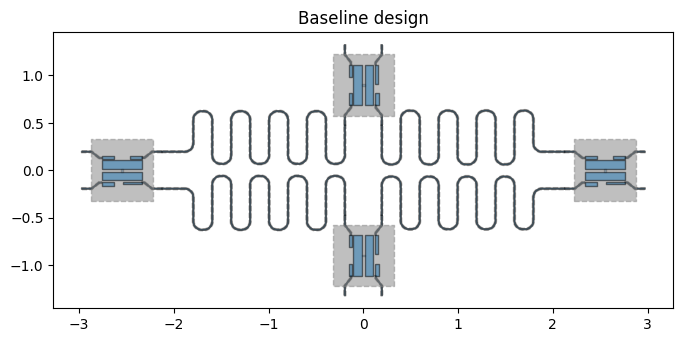
fig = qm.view(design, figsize=(8, 8), title="Baseline design")
fig
Design ready — 8 components
[2]:
Sweep 1: qubit pad width
pad_width controls the size of the transmon capacitor pads. Larger pads → larger capacitance → lower qubit frequency. Here we sweep three values and compare the geometry.
[3]:
pad_widths = ["300 um", "425 um", "550 um"]

fig, axes = plt.subplots(1, 3, figsize=(18, 6))
fig.suptitle("Sweep: Q1 pad_width", fontsize=14)

for ax, pw in zip(axes, pad_widths):
    q1.options.pad_width = pw
    design.rebuild()
    qm.view(design, components=["Q1"], title=f"pad_width = {pw}", ax=ax)

# Restore baseline
q1.options.pad_width = "425 um"
design.rebuild()

plt.tight_layout()
plt.close(fig)
display(fig)
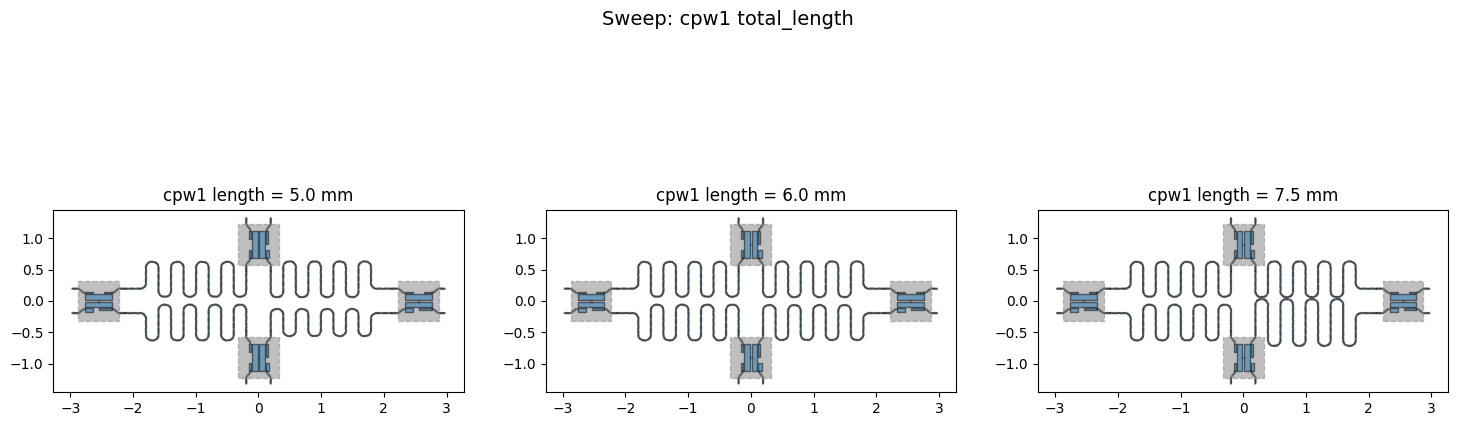
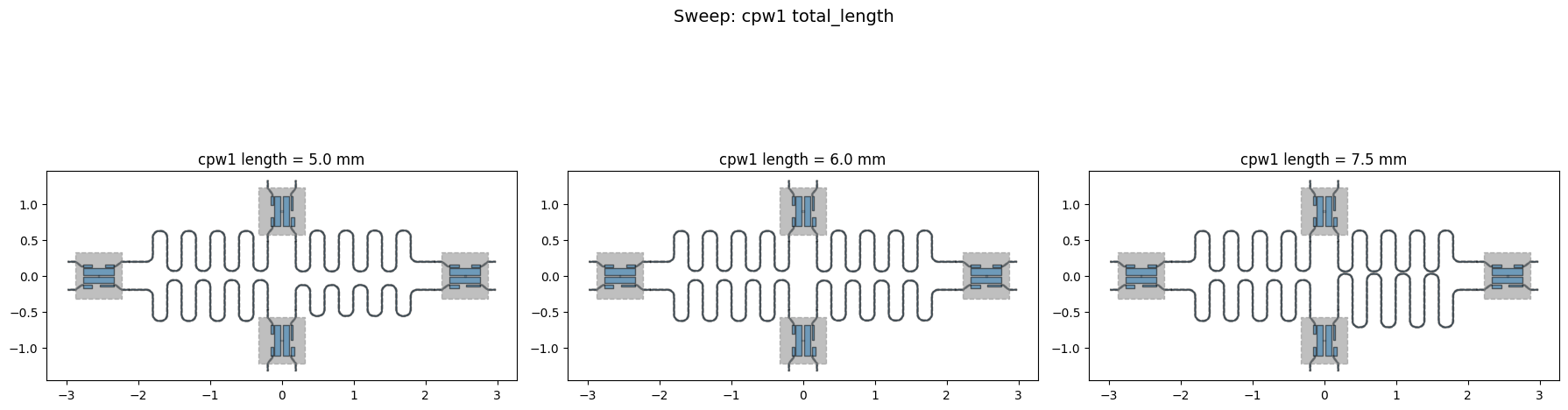
Sweep 2: CPW coupling length
total_length controls the electrical length of a CPW resonator, which sets its resonant frequency. Longer CPW → lower frequency. The route geometry adapts automatically.
[4]:
cpw_lengths = ["5.0 mm", "6.0 mm", "7.5 mm"]

fig, axes = plt.subplots(1, 3, figsize=(18, 6))
fig.suptitle("Sweep: cpw1 total_length", fontsize=14)

for ax, length in zip(axes, cpw_lengths):
    cpw1.options.total_length = length
    design.rebuild()
    qm.view(design, title=f"cpw1 length = {length}", ax=ax)

# Restore baseline
cpw1.options.total_length = "6.0 mm"
design.rebuild()

plt.tight_layout()
plt.close(fig)
display(fig)
Exporting a design family to PNG
Combine a parameter sweep with fig.savefig() to produce a labelled image set for a paper, slide deck, or design review.
[5]:
import os

output_dir = "sweep_output"
os.makedirs(output_dir, exist_ok=True)

for pw in ["300 um", "425 um", "550 um"]:
    q1.options.pad_width = pw
    design.rebuild()
    fig = qm.view(design, figsize=(7, 7), title=f"Q1 pad_width = {pw}")
    safe = pw.replace(" ", "")
    fig.savefig(f"{output_dir}/padwidth_{safe}.png", dpi=150, bbox_inches="tight")
    print(f"Saved padwidth_{safe}.png")

# Restore
q1.options.pad_width = "425 um"
design.rebuild()
print(f"\nAll PNGs saved to ./{output_dir}/")
Saved padwidth_300um.png
Saved padwidth_425um.png
Saved padwidth_550um.png

All PNGs saved to ./sweep_output/
Next steps
1.3 Saving Your Design — export to GDS for fabrication
1.4 Headless workflow — run all of this in scripts and CI
4.x Analysis — connect your design to electromagnetic simulation
For more information, review the Introduction to Quantum Computing and Quantum Hardware lectures below
|
Lecture Video | Lecture Notes | Lab |
|
Lecture Video | Lecture Notes | Lab |
|
Lecture Video | Lecture Notes | Lab |
|
Lecture Video | Lecture Notes | Lab |
|
Lecture Video | Lecture Notes | Lab |
|
Lecture Video | Lecture Notes | Lab |